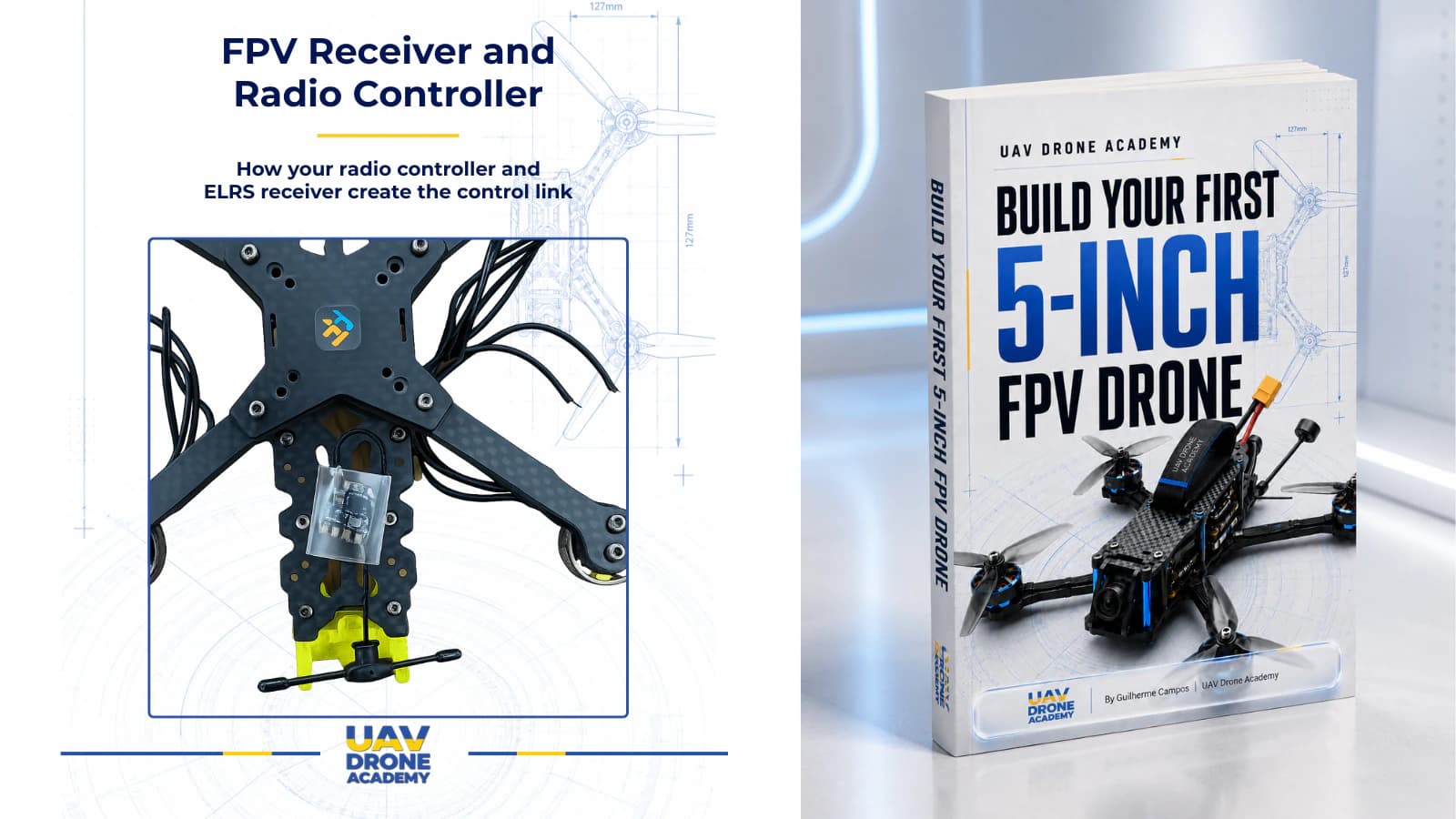
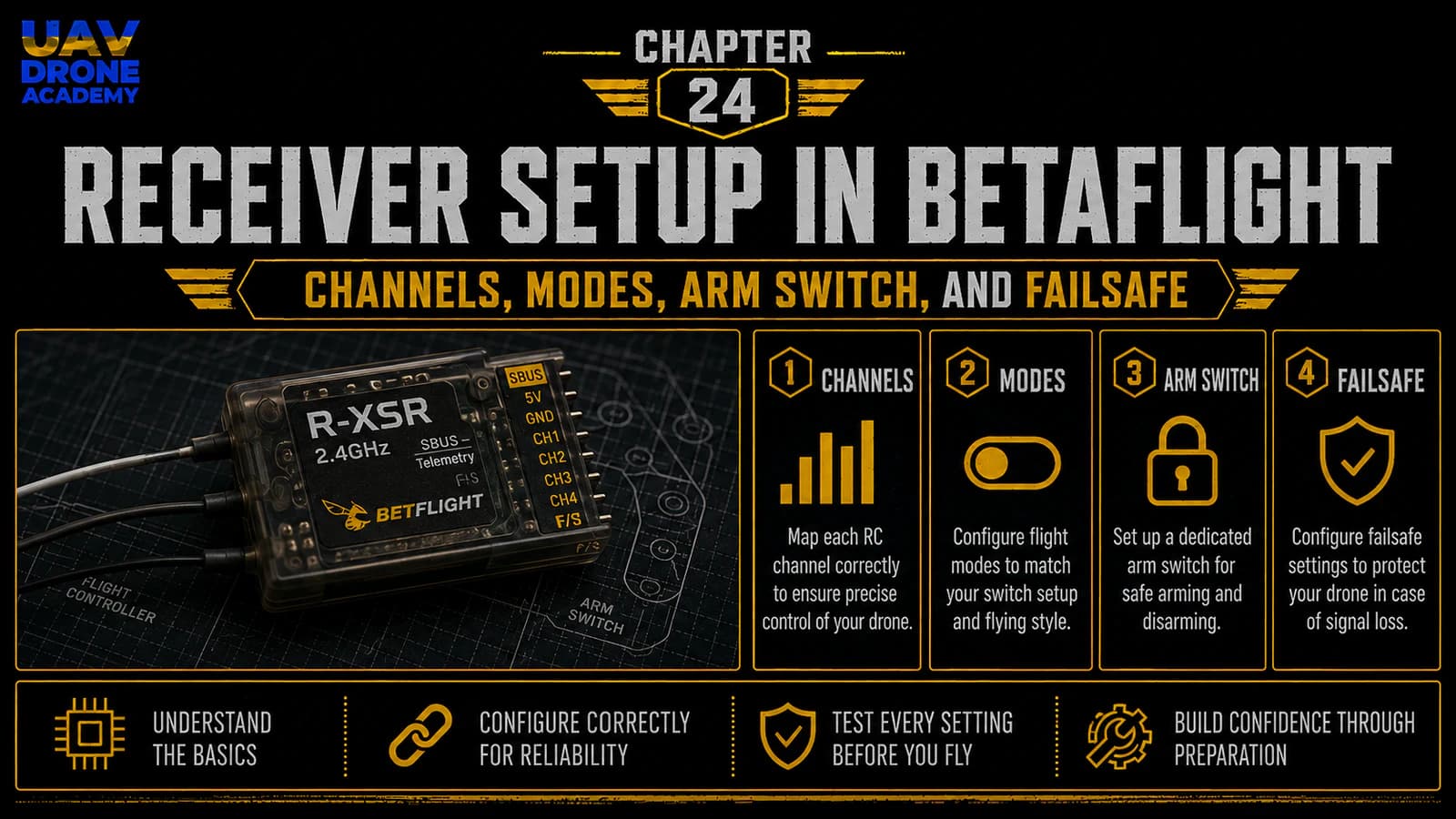
In the previous chapter, we connected the ExpressLRS receiver to the radio controller through the binding process.
That was an important step.
But binding alone does not mean the drone is ready to fly.
After binding, we still need to confirm that Betaflight can correctly read the commands coming from the radio controller.
This chapter is where we verify that the pilot’s inputs are reaching the flight controller properly.
We will check:
- receiver communication
- stick movement
- channel mapping
- throttle, roll, pitch, and yaw
- AUX channels
- Arm switch
- basic flight modes
- failsafe behavior
This is one of the most important configuration chapters in the entire course.
Why?
Because the receiver setup defines how the pilot actually controls the drone.
If this setup is wrong, the drone may:
- not arm
- respond incorrectly
- ignore switch commands
- enter failsafe unexpectedly
- behave dangerously
For beginners, the goal is not to configure every advanced radio function.
The goal is simple:
make sure the drone correctly understands the radio controller and responds safely.
Safety First
Before doing anything in this chapter, confirm:
propellers are removed
This is still the most important safety rule.
During receiver setup, you may configure:
- Arm switch
- flight modes
- channel endpoints
- failsafe behavior
- other control functions
If something is wrong, motors could behave unexpectedly later.
Never configure receiver or motor functions with propellers installed.
Also confirm:
- drone is on a stable surface
- VTX antenna is installed if powering by LiPo
- battery is disconnected unless needed
- radio controller is powered
- receiver is bound
- Betaflight connects correctly
For most receiver setup checks, the drone may need LiPo power because some receivers do not power from USB alone.
If you connect a LiPo, use safe habits and keep the props off.
What We Already Configured
Before entering the Receiver tab, the previous chapters should already be complete.
You should have:
- wired the receiver to a UART
- enabled Serial RX on the correct UART in Ports tab
- selected Serial-based receiver mode
- selected CRSF as the receiver provider for ExpressLRS
- bound the receiver to the radio controller
ExpressLRS documentation also states that UART-based ELRS receivers use CRSF to communicate with flight controllers, so CRSF is the correct receiver provider for this build.
Now we need to verify that everything works in practice.
Step 1 — Open the Receiver Tab
Connect the drone to Betaflight.
Then open:
Receiver Tab
This tab shows the live input signals that Betaflight receives from the radio controller.
You should see channels such as:
- Roll
- Pitch
- Yaw
- Throttle
- AUX channels
Betaflight’s Receiver tab is specifically used to configure receiver type, view channel values, check input response, and confirm receiver behavior.
Step 2 — Power the Radio Controller
Turn on the radio controller.
Make sure the correct model is selected.
For our build, the selected model should use:
- ExpressLRS
- the correct internal or external ELRS module
- correct frequency band
- correct binding phrase or completed bind
- basic multirotor channel setup
If the wrong radio model is selected, Betaflight may not receive the expected channel data.
Step 3 — Power the Receiver
If your receiver powers from USB, it may already be active.
If not, connect the LiPo battery safely.
Before connecting LiPo:
- propellers removed
- VTX antenna installed
- drone on safe surface
- no loose wires
- smoke stopper if desired
Once powered, the receiver should connect to the radio controller.
The receiver LED behavior depends on the specific model, but you should see some indication that it is powered and connected.
Step 4 — Check Stick Movement
Now move the radio sticks slowly and watch the Receiver tab.
You should see movement for:
Roll
Right stick left and right on Mode 2 radios.
Pitch
Right stick forward and backward on Mode 2 radios.
Yaw
Left stick left and right on Mode 2 radios.
Throttle
Left stick up and down on Mode 2 radios.
For most FPV pilots, Mode 2 is the standard control layout:
- left stick: throttle and yaw
- right stick: pitch and roll
If the bars move correctly, Betaflight is reading the radio.
This is a major milestone.
Step 5 — If Nothing Moves
If the Receiver tab shows no stick movement, do not panic.
Check the system logically.
Possible causes:
- receiver not powered
- receiver not bound
- wrong radio model selected
- wrong UART configured
- Serial RX enabled on wrong UART
- TX/RX wires not crossed correctly
- receiver protocol not set to CRSF
- radio module not active
- firmware mismatch between TX and RX
Start with the simple checks first:
- is the receiver LED on?
- is the radio connected?
- is the correct model selected?
- is Serial RX enabled on the correct UART?
- is CRSF selected?
Do not randomly change settings.
Troubleshoot one item at a time.
Step 6 — Understand Channel Mapping
Channel mapping tells Betaflight which channel corresponds to each control.
The four main control channels are usually:
- Aileron
- Elevator
- Throttle
- Rudder
These are often abbreviated as:
AETR
or:
TAER
Different radio systems may use different channel orders.
Betaflight documentation notes that channel mapping can be configured in the Receiver tab or through the CLI map command.
Common Channel Map Examples
AETR
- Aileron = Roll
- Elevator = Pitch
- Throttle = Throttle
- Rudder = Yaw
TAER
- Throttle = Throttle
- Aileron = Roll
- Elevator = Pitch
- Rudder = Yaw
If the wrong channel map is selected, moving one stick may control the wrong function in Betaflight.
For example:
- moving throttle may move roll
- moving yaw may move pitch
- moving roll may move throttle
That must be fixed before continuing.
Step 7 — Verify Each Control Separately
Move only one stick axis at a time.
Check:
Roll Stick
Only Roll should move.
Pitch Stick
Only Pitch should move.
Throttle Stick
Only Throttle should move.
Yaw Stick
Only Yaw should move.
If the wrong bar moves, adjust the channel map until the controls match correctly.
Do not continue until the four main controls are correct.
Step 8 — Check Channel Center Values
When sticks are centered, Roll, Pitch, and Yaw should usually be near:
1500
Throttle low should usually be near:
1000
Full stick deflection should usually reach close to:
1000 to 2000
Exact values may vary slightly.
Modern ExpressLRS and EdgeTX setups are usually close enough by default.
If values are very far off, you may need radio calibration or endpoint adjustment.
For beginners, do not obsess over tiny differences immediately.
Focus first on correct direction and normal range.
Step 9 — Check Stick Direction
Move each stick and confirm the direction makes sense.
For example:
- roll right should increase roll to the right
- pitch forward should move pitch forward
- yaw right should move yaw right
- throttle up should increase throttle
If a control moves backwards, fix it in the radio or Betaflight using the correct method for your setup.
Do not ignore reversed controls.
A reversed control axis can make the drone impossible to fly safely.
Step 10 — Understand AUX Channels
AUX channels are extra channels controlled by switches, sliders, or buttons on the radio.
They are used for functions like:
- Arm
- Angle Mode
- Horizon Mode
- Beeper
- Flip Over After Crash
- GPS Rescue
- Turtle Mode
- other features
For our beginner build, the most important AUX function is:
Arm
Without a properly configured Arm switch, the drone cannot safely enter flight-ready mode.
Step 11 — Choose an Arm Switch
The Arm switch should be easy to reach but difficult to trigger accidentally.
Many pilots use a two-position switch for arming.
A good Arm switch should be:
- physically clear
- easy to memorize
- not shared with other functions
- consistent across future models
- easy to switch off quickly
For beginners, do not use a momentary button for Arm.
Use a stable switch position.
Step 12 — Open the Modes Tab
Now go to:
Modes Tab
The Modes tab is where Betaflight assigns functions to AUX channels.
Betaflight documentation explains that Modes are used to enable or disable features and trigger flight controller actions using AUX channel switch ranges.
This means that when a switch moves into a defined range, the corresponding mode becomes active.
Step 13 — Add Arm Mode
In the Modes tab:
- Find ARM.
- Click Add Range.
- Select the AUX channel controlled by your chosen Arm switch.
- Move the switch and watch the marker.
- Set the active range where you want Arm to activate.
- Save.
The Arm mode should only activate when the switch is deliberately moved to the armed position.
When the switch is off, Arm should be inactive.
Step 14 — Test the Arm Switch in Betaflight
With propellers removed, move the Arm switch and observe Betaflight.
You should see the ARM mode activate when the switch is in the armed position.
Move the switch back.
ARM should deactivate.
Do this several times.
You want the switch behavior to feel obvious and reliable.
Important Arm Safety Concept
The Arm switch is one of the most important safety controls on the drone.
When the drone is armed, motors can spin.
Even at idle, the drone should be treated as active.
That is why propellers must remain removed during configuration.
Later, when propellers are installed, the Arm switch must be handled with serious attention.
Step 15 — Add Angle Mode for Beginners
Even though most FPV pilots eventually fly in Acro Mode, Angle Mode can be useful for early tests.
Angle Mode is a self-leveling mode.
It helps the drone return toward level when the sticks are centered.
For beginners, this can be useful during early hover testing.
To add Angle Mode:
- Find ANGLE in the Modes tab.
- Click Add Range.
- Assign it to a switch or switch position.
- Save.
If no Angle or Horizon mode is active, the drone normally flies in Acro Mode.
Step 16 — Should We Use Horizon Mode?
Horizon Mode is a hybrid mode.
It provides some self-leveling but allows more aggressive movements when sticks are pushed far.
For beginners, it can be useful, but it is not mandatory.
Our beginner setup can start with:
- Arm switch
- optional Angle Mode
- possibly Beeper later
- possibly Flip Over After Crash later
Do not overload the radio with too many modes immediately.
Simple is better.
Step 17 — Understanding Acro Mode
Acro Mode is the standard manual FPV mode.
In Acro Mode, the drone does not self-level.
The pilot controls rotation directly.
Most freestyle FPV flying happens in Acro Mode.
But Acro requires practice.
For first hover tests, Angle Mode may reduce stress.
Later, pilots should practice Acro in a simulator before flying aggressively.
Step 18 — Add Beeper Mode If Available
If your drone has a buzzer or DShot Beacon configured later, a Beeper switch can be useful.
The Beeper helps locate the drone after a crash.
If your build does not include a physical buzzer, DShot Beacon may still allow motors to beep, depending on ESC support and configuration.
For now, Beeper setup is optional.
We can revisit it later.
Step 19 — Do Not Configure Too Many Modes Yet
Beginners often add too many modes too early.
This creates confusion.
For now, prioritize:
- Arm
- Angle Mode, optional
- Beeper, optional
That is enough for early setup.
Advanced modes can come later.
Step 20 — Save the Modes
After setting ranges, click:
Save
Then move each switch again and confirm the active indicators work correctly.
Do not assume the setup saved correctly.
Always verify.
Step 21 — Understanding Failsafe
Failsafe is the system that activates if radio control is lost.
This is extremely important.
If the radio link fails, the drone must not continue flying uncontrolled.
Betaflight provides failsafe behavior to manage this hazard if the radio link is lost, the receiver fails, or the receiver disconnects.
For a basic FPV freestyle build, the common beginner-safe behavior is:
disarm and drop
This means that if control signal is lost, the drone stops the motors instead of flying away.
Why Failsafe Matters
Without proper failsafe behavior, signal loss could cause:
- flyaway
- uncontrolled flight
- property damage
- injury risk
- lost drone
- dangerous recovery situations
Failsafe is not optional.
It must be checked before flight.
Step 22 — Betaflight Failsafe Stages
Betaflight documentation describes failsafe as a staged system.
Stage 1 can occur when receiver data becomes invalid or signal is lost for a short period, and if the signal does not recover, the configured failsafe behavior continues.
For beginners, the simplified concept is:
- Betaflight detects signal loss.
- It waits briefly to confirm the problem.
- It performs the configured failsafe action.
For our beginner build, that action should normally be disarm/drop.
Step 23 — Check Failsafe Settings
Open the Failsafe tab if available in your Betaflight version.
For a basic beginner 5-inch freestyle drone, confirm that failsafe behavior is set to a safe option.
In most beginner freestyle setups, this means:
- no GPS Rescue yet
- no advanced autonomous behavior
- no fixed throttle descent
- basic disarm/drop behavior
GPS Rescue requires GPS hardware and careful configuration.
Our minimalist build does not include GPS at this stage.
So do not configure GPS Rescue now.
Step 24 — Test Failsafe Carefully
Failsafe testing must be done carefully.
With propellers removed:
- Connect Betaflight.
- Power the receiver.
- Confirm stick movement works.
- Turn off the radio or disable the transmitter carefully.
- Watch Betaflight status.
- Confirm receiver signal loss is detected.
- Turn the radio back on.
- Confirm signal returns.
Do not test failsafe outdoors with propellers installed at this stage.
Failsafe must be verified safely on the bench first.
Step 25 — Understanding Arming Disable Flags
Sometimes the drone will refuse to arm.
This is not always a problem.
Betaflight includes arming prevention systems to stop unsafe arming.
For example, Betaflight documentation lists arming prevention flags such as RXLOSS, which means no valid receiver signal is detected, and BADRX/NOT_DISARMED, which can occur when the receiver recovers from failsafe while the arm switch is still on.
For beginners, this is helpful.
If the drone will not arm later, Betaflight usually tells you why.
Do not immediately disable safety features.
Read the arming disable reason and fix the real issue.
Step 26 — Final Receiver Verification
Before leaving this chapter, verify:
Sticks
- roll works correctly
- pitch works correctly
- yaw works correctly
- throttle works correctly
Channels
- correct channel map
- correct stick direction
- normal channel ranges
Switches
- Arm switch works
- Angle Mode switch works if configured
- Beeper switch works if configured
Failsafe
- signal loss is detected
- safe failsafe behavior is configured
- no propellers installed
This confirms that the receiver system is working correctly.
What We Are Not Doing Yet
In this chapter, we are not yet:
- testing motors
- setting motor direction
- installing propellers
- configuring OSD
- tuning PID
- flying the drone
Those steps come later.
Receiver setup must be correct before motor testing begins.
Common Beginner Mistakes
Binding the Receiver But Not Checking Betaflight
Binding is not enough.
You must verify stick movement inside Betaflight.
Enabling the Wrong Channel Map
If the wrong bars move, the channel map is wrong.
Fix it before continuing.
Setting Arm on a Confusing Switch
Arm should be easy to understand and quick to deactivate.
Do not use a confusing switch.
Adding Too Many Modes Too Early
More modes create more confusion.
Start simple.
Ignoring Failsafe
Failsafe is a safety requirement.
Do not skip it.
Testing With Propellers Installed
Never configure receiver, modes, or failsafe with propellers installed.
Beginner Receiver Setup Checklist
Before moving to the next chapter, confirm:
- propellers removed
- radio controller powered
- correct radio model selected
- receiver bound
- receiver powered
- Betaflight Receiver tab shows stick movement
- roll, pitch, yaw, and throttle move correctly
- channel map is correct
- stick directions are correct
- throttle low and center values look normal
- AUX channels move when switches are moved
- Arm switch assigned
- Arm mode activates only in the intended switch position
- Angle Mode configured if desired
- failsafe behavior checked
- no motor testing performed yet
If all of this is correct, the receiver setup is complete.
What We Have Completed
At this stage, we have:
- verified radio communication in Betaflight
- checked stick movement
- confirmed channel mapping
- checked control directions
- configured the Arm switch
- optionally configured Angle Mode
- introduced Beeper setup
- reviewed failsafe behavior
- prepared the drone for motor configuration
This is a major step toward flight readiness.
The pilot’s radio commands are now correctly reaching the flight controller.
Our Build Philosophy Moving Forward
The same strategy continues:
verify before moving forward
Do not assume something works.
Check it.
Confirm it.
Save it.
Test it safely.
This is how beginners build confidence and avoid dangerous mistakes.
Conclusion
Receiver setup is one of the most important parts of configuring a 5-inch FPV drone.
This is where the radio controller becomes a real control interface for the aircraft.
In this chapter, we verified:
- receiver communication
- stick movement
- channel mapping
- AUX channels
- Arm switch
- basic flight modes
- failsafe behavior
For beginners, the most important lessons are:
- binding is not enough
- Betaflight must show correct stick movement
- Arm must be configured safely
- failsafe must be checked
- propellers must remain removed during setup
Now that the receiver system is working, we are ready to configure the motor system.
In the next chapter, we will check motor order, motor direction, and propeller setup in Betaflight.
Next Chapter
Motor Direction and Propeller Setup in Betaflight