
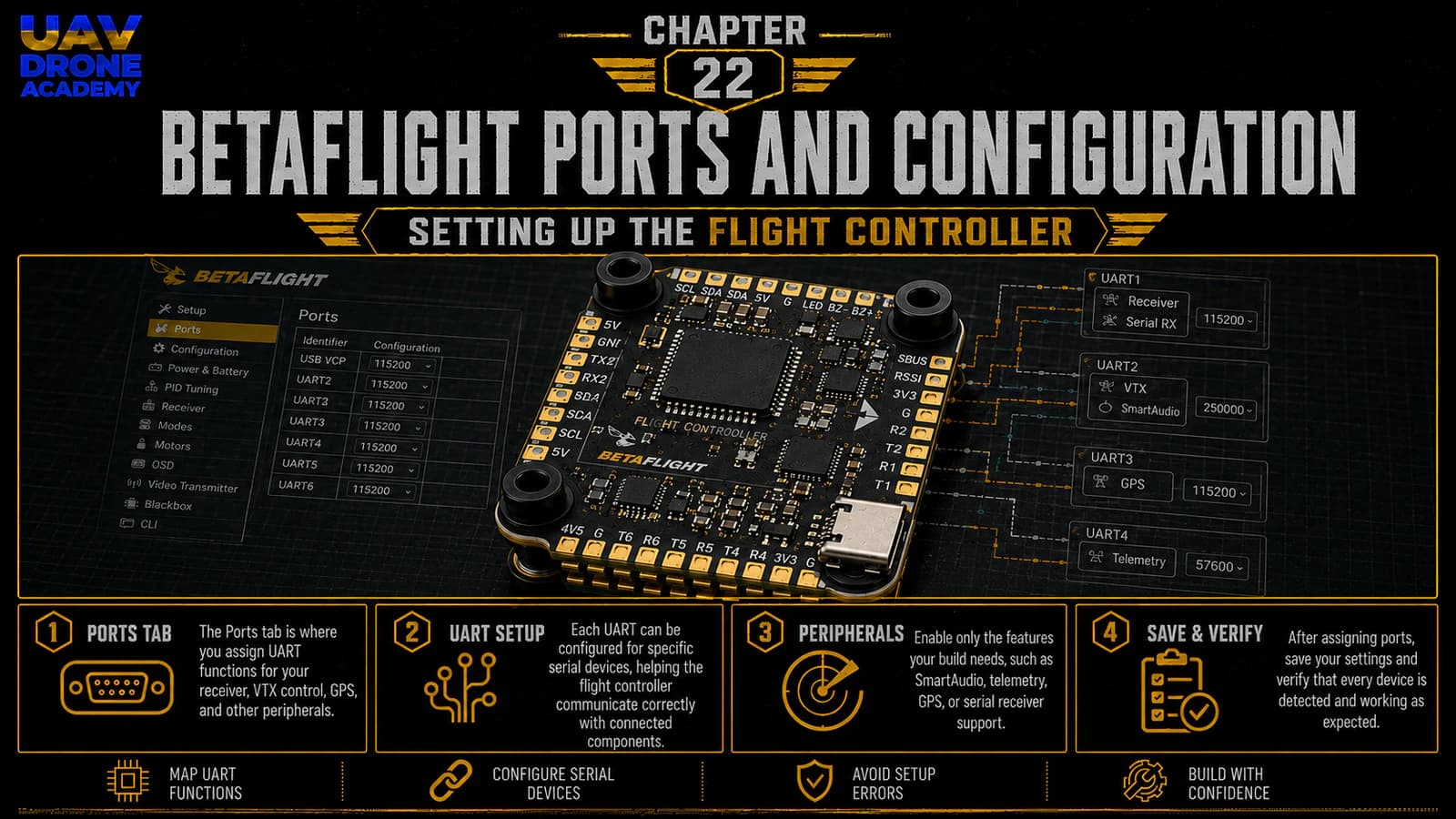
In the previous chapter, we connected the drone to Betaflight for the first time.
That was an important milestone.
We confirmed that:
- the flight controller connects to the computer
- Betaflight detects the board
- the Setup tab opens correctly
- the gyro reacts when the drone moves
- the basic software connection is working
Now we are ready to begin the real configuration process.
The first major step is understanding and configuring:
Betaflight Ports
The Ports tab tells the flight controller which devices are connected to which communication ports.
This is extremely important because the flight controller needs to communicate with several components, including:
- the ExpressLRS receiver
- the VTX control wire
- possible telemetry systems
- possible GPS modules later
- other serial devices
For beginners, the Ports tab can look confusing at first.
You may see terms like:
- UART1
- UART2
- MSP
- Serial RX
- Telemetry Output
- Sensor Input
- Peripherals
- SmartAudio
- IRC Tramp
Do not worry.
In this chapter, we will break everything down slowly and focus only on what our beginner 5-inch FPV build actually needs.
Our goal is simple:
configure the flight controller communication ports correctly so the receiver and VTX control can work later.
What Is a UART?
Before using the Ports tab, we need to understand one important concept:
UART
A UART is a communication port on the flight controller.
It allows the flight controller to exchange data with other devices.
Common devices that use UARTs include:
- radio receivers
- GPS modules
- VTX control systems
- digital FPV systems
- telemetry devices
You can think of each UART as a communication channel.
If a device is wired to UART2, Betaflight must also be configured to use UART2 for that device.
Physical wiring and software configuration must match.
Understanding RX and TX Pads
UARTs usually have two important pads:
TX
TX means transmit.
It sends data out from the flight controller.
RX
RX means receive.
It receives data into the flight controller.
For UART communication, devices usually connect crossed:
TX goes to RX
RX goes to TX
For example, if your ExpressLRS receiver is wired to UART2:
- receiver TX → flight controller RX2
- receiver RX → flight controller TX2
Then, in Betaflight, UART2 must be configured for the receiver.
Why Ports Configuration Matters
If the Ports tab is configured incorrectly, components may be wired correctly but still not work.
For example:
If the receiver is physically connected to UART2 but Serial RX is enabled on UART1, Betaflight will not read the receiver correctly.
The wiring may be good.
The receiver may be powered.
The radio may be bound.
But Betaflight will still not see stick movement because the wrong port is enabled.
That is why this chapter matters.
Before Changing Ports
Before changing anything, confirm:
- propellers are removed
- drone connects to Betaflight by USB
- LiPo battery is disconnected unless needed
- you know which UART your receiver is wired to
- you know which pad your VTX control wire is connected to
- you have the flight controller wiring diagram available
Do not guess.
Always use the wiring diagram for your exact flight controller.
The Ports Tab
Open Betaflight and go to:
Ports
This tab displays the available communication ports on the flight controller.
Depending on your board, you may see:
- USB VCP
- UART1
- UART2
- UART3
- UART4
- UART5
- UART6
- or more
Not every flight controller has the same number of UARTs.
This is normal.
Understanding USB VCP
USB VCP is the USB connection between the flight controller and your computer.
This is what allows Betaflight to communicate with the board through USB.
In most normal setups, you should leave USB VCP alone.
Do not disable MSP on USB VCP.
If you disable the wrong USB communication setting, you may make it harder to reconnect to the board.
For beginners:
do not change USB VCP settings
Understanding MSP
MSP means:
MultiWii Serial Protocol
In simple beginner terms, MSP is used for communication between Betaflight and external devices or configuration tools.
On the Ports tab, MSP is usually enabled for USB VCP.
Some advanced systems also use MSP on UARTs, but our beginner analog build does not need advanced MSP configuration right now.
Important:
do not enable MSP randomly on UARTs
Enabling MSP on the wrong UART can create conflicts.
Important Warning About MSP and Serial RX
Betaflight documentation warns that MSP and Serial RX should not be enabled on the same UART because this creates a conflict. Betaflight may refuse to save incompatible port settings to prevent unintended behavior.
For beginners, the rule is simple:
each UART should have one clear job
If UART2 is used for the receiver, do not also use it for MSP.
Keep the configuration clean.
Setting Up the Receiver Port
Our build uses:
ExpressLRS
Most ExpressLRS receivers communicate with Betaflight using:
CRSF
This is a serial receiver protocol.
That means we need to enable:
Serial RX
on the UART where the receiver is physically connected.
How to Know Which UART to Use
Look at your wiring.
If the receiver is soldered to:
- RX1/TX1, it is UART1
- RX2/TX2, it is UART2
- RX3/TX3, it is UART3
- RX4/TX4, it is UART4
Betaflight’s setup guide explains the same logic: RX2/TX2 correspond to UART2, RX1/TX1 to UART1, and Serial RX should be enabled on the UART where the receiver is connected.
Example:
If your receiver wires are connected like this:
- receiver TX → RX2
- receiver RX → TX2
then your receiver is connected to:
UART2
In the Ports tab, enable:
Serial RX on UART2
Then save and reboot.
What Not to Do
Do not enable Serial RX on multiple UARTs.
Do not enable Serial RX on a UART that has nothing connected.
Do not enable Serial RX on the same UART used for another device.
For our beginner build, only one UART should be assigned to the receiver.
Setting Up VTX Control
Our analog VTX may have a control wire.
This control wire allows Betaflight to control VTX settings such as:
- band
- channel
- power level
- pit mode
Common analog VTX control protocols include:
- SmartAudio
- IRC Tramp
Betaflight documentation explains that SmartAudio or IRC Tramp should be selected on the correct UART in the Ports tab, usually through the Peripherals dropdown.
How VTX Control Is Wired
Usually, analog VTX control uses one wire connected to a flight controller TX pad.
For example:
- VTX SmartAudio wire → TX3
If the VTX control wire is connected to TX3, then in Betaflight, you configure UART3 for VTX control.
You do this in the Ports tab under:
Peripherals
Then select:
- TBS SmartAudio
- IRC Tramp
depending on your VTX.
Example VTX Control Setup
If your VTX SmartAudio wire is connected to TX3:
- go to Ports tab
- find UART3
- go to Peripherals
- select TBS SmartAudio
- save and reboot
If your VTX uses IRC Tramp:
- go to Ports tab
- find the correct UART
- go to Peripherals
- select IRC Tramp
- save and reboot
Do not select both.
Use the protocol supported by your specific VTX.
What If You Do Not Connect VTX Control?
The VTX can still transmit video without SmartAudio or Tramp, depending on the model.
But without VTX control, you may need to change settings manually using:
- buttons on the VTX
- LEDs
- manufacturer-specific procedures
For beginners, VTX control through Betaflight is much easier.
That is why we recommend wiring and configuring it when possible.
What About GPS?
Our beginner build does not include GPS yet.
So do not configure GPS in the Ports tab now.
GPS can be added later as an upgrade.
For now, keeping the build simple is part of the strategy.
Do not enable GPS on random UARTs.
Unused features should stay disabled.
What About Telemetry Output?
ExpressLRS can provide telemetry through the receiver link.
However, beginners do not need to overcomplicate telemetry settings at this stage.
For a basic ELRS setup, the most important thing is:
- receiver wired correctly
- Serial RX enabled on the correct UART
- receiver protocol configured correctly later
- radio link working
Telemetry details can be refined later if needed.
Save and Reboot
After changing ports, click:
Save and Reboot
Betaflight will restart the flight controller.
After reconnecting, return to the Ports tab and confirm that your settings were saved.
This is important.
If settings do not save, there may be a conflict.
For example:
- MSP and Serial RX enabled on the same UART
- incompatible functions selected on one port
- wrong configuration combination
If settings reset after saving, inspect for conflicts.
Basic Ports Setup for Our Beginner Build
A typical beginner configuration may look like this:
USB VCP
MSP enabled.
Used for Betaflight connection.
UART for ExpressLRS Receiver
Serial RX enabled.
Example:
- UART2 → Serial RX enabled
UART for VTX Control
Peripheral selected.
Example:
- UART3 → TBS SmartAudio
Other UARTs
Leave disabled unless needed.
This keeps the configuration simple and clean.
Important Note About Exact UART Numbers
The exact UART numbers depend on your flight controller and wiring.
Do not copy UART numbers blindly from another build.
Always match Betaflight settings to your actual wiring.
The correct question is not:
“Which UART should everyone use?”
The correct question is:
“Which UART did I wire this component to?”
That is the UART you configure.
The Configuration Tab
After the Ports tab, the next important area is the Configuration tab.
In this chapter, we will only introduce the basic concepts.
Full receiver setup, modes, motors, OSD, and PID topics will be handled in later chapters.
Open:
Configuration
Here you will see major flight controller settings.
For beginners, do not change everything.
We only need to understand the most important sections.
Mixer
For a normal 5-inch FPV drone, the mixer should be:
Quad X
This is the standard configuration for a four-motor quadcopter.
Most modern flight controllers already default to Quad X.
Do not change this unless you know exactly why.
ESC / Motor Protocol
Betaflight uses a motor protocol to communicate with the ESC.
Modern FPV builds commonly use:
DShot
DShot is a digital ESC protocol.
For many modern 5-inch builds, common options include:
- DShot300
- DShot600
For beginners, the default setting on a modern stack is often already appropriate.
Do not change motor protocol randomly.
Motor protocol configuration will become more relevant when we check motor behavior later.
Receiver Mode
For our ExpressLRS receiver, the receiver mode should be:
Serial-based receiver
Betaflight’s Receiver tab documentation explains that most modern receivers communicate over serial protocols such as CRSF or SBUS.
Since ExpressLRS normally uses CRSF, this is the correct direction for our build.
The detailed receiver configuration will be handled in the next chapter.
Serial Receiver Provider
For ExpressLRS, the serial receiver provider is normally:
CRSF
This tells Betaflight how to interpret the receiver signal.
Do not select SBUS, Spektrum, or other protocols for ELRS unless you are doing something very specific and know why.
For our build:
ELRS uses CRSF
Board and Sensor Alignment
If the flight controller was mounted with the arrow pointing forward, board alignment may not need changes.
If the board was rotated during installation, Betaflight must be told about that rotation.
For beginners, this is one reason we recommended mounting the flight controller arrow forward whenever possible.
In this chapter, do not adjust board alignment unless the 3D model clearly moves incorrectly and you understand the mounting orientation.
We can verify this carefully later.
Accelerometer
For FPV drones, the accelerometer is mainly used for self-level modes such as:
- Angle Mode
- Horizon Mode
Many freestyle pilots eventually fly in Acro Mode, where the accelerometer is not used for self-leveling.
However, for beginners, Angle Mode can be useful during early tests.
So leaving the accelerometer enabled at this stage is reasonable.
Arming Settings
Betaflight includes safety settings that prevent arming under certain conditions.
Do not disable safety features randomly.
If the drone refuses to arm later, Betaflight usually gives an arming disable flag explaining why.
We will handle arming setup later when configuring modes and receiver controls.
Motor Stop
Motor Stop is a setting that can prevent motors from spinning at idle when armed.
For modern FPV builds, many pilots keep motors spinning at idle when armed because it clearly shows that the drone is armed.
Beginners should not change this randomly.
We will handle arming behavior later in the proper safety context.
DShot Beacon
DShot Beacon can make motors beep using ESC commands.
This can help locate a crashed drone, although it is not a replacement for a proper buzzer.
We do not need to configure this deeply now.
It can be revisited later.
Do Not Change PID or Filter Settings Yet
Beginners often become curious about PID and filters too early.
Do not change PID or filter settings at this stage.
Modern Betaflight defaults are usually good enough for a first hover and basic setup.
PID and filters will be introduced later as basic concepts, not as aggressive tuning.
For now:
leave PID and filter settings alone
Recommended Beginner Approach
For this chapter, the recommended approach is:
- Open Ports tab.
- Identify receiver UART.
- Enable Serial RX on receiver UART.
- Identify VTX control UART.
- Select SmartAudio or IRC Tramp on the correct UART.
- Save and reboot.
- Open Configuration tab.
- Confirm Quad X mixer.
- Confirm Serial-based receiver mode.
- Confirm CRSF as receiver provider for ELRS.
- Avoid changing advanced settings.
This keeps the setup clean and controlled.
What We Are Not Doing Yet
In this chapter, we are not yet:
- binding ExpressLRS
- testing stick movement
- assigning arm switch
- testing motors
- changing motor direction
- configuring OSD layout
- setting failsafe behavior
- tuning PID
- installing propellers
Those steps come later.
This chapter only prepares the communication structure.
Common Beginner Mistakes
Enabling Serial RX on the Wrong UART
If the receiver is wired to UART2, enable Serial RX on UART2.
Do not guess.
Enabling Serial RX on Multiple UARTs
Only the receiver UART should have Serial RX enabled.
Enabling MSP and Serial RX on the Same UART
This creates a conflict.
Keep each UART assigned to one clear purpose.
Selecting the Wrong VTX Protocol
Use SmartAudio only if your VTX supports SmartAudio.
Use IRC Tramp only if your VTX supports IRC Tramp.
Copying Someone Else’s UART Setup Blindly
Your UART setup must match your actual wiring.
Another pilot’s build may use different pads.
Changing Advanced Settings Too Early
Do not change PID, filters, motor protocol, or advanced features without a reason.
Beginner Configuration Checklist
Before moving to the next chapter, confirm:
- Betaflight connects correctly
- Ports tab opens normally
- USB VCP MSP left unchanged
- Serial RX enabled only on receiver UART
- VTX control selected only on correct UART, if wired
- unused UARTs left disabled
- settings saved successfully
- Configuration tab shows Quad X
- receiver mode set for serial receiver
- CRSF selected for ExpressLRS
- no advanced settings changed randomly
- propellers still removed
If all of this is correct, the flight controller is ready for receiver binding and radio setup.
What We Have Completed
At this point, we have:
- understood what UARTs are
- understood TX and RX logic
- configured the receiver port
- configured VTX control, if available
- avoided MSP conflicts
- reviewed basic Configuration tab settings
- confirmed the correct direction for ExpressLRS setup
- prepared the drone for radio binding
This is an important step.
The drone is now beginning to understand which connected devices belong to which communication ports.
Our Build Philosophy Moving Forward
The configuration phase must be approached the same way as the physical build:
one system at a time
We do not configure everything randomly.
We identify the system.
We confirm the wiring.
We configure the matching software setting.
We save.
We verify.
This method prevents confusion and makes troubleshooting much easier.
Conclusion
The Ports tab is one of the most important areas in Betaflight.
It tells the flight controller how to communicate with external devices such as the receiver and VTX.
For our beginner 5-inch FPV build, the most important port settings are:
- enabling Serial RX on the UART connected to the ExpressLRS receiver
- selecting the correct VTX control protocol on the UART connected to the VTX control wire
- avoiding MSP conflicts
- leaving unused ports disabled
The Configuration tab also confirms the basic system direction:
- Quad X mixer
- serial receiver mode
- CRSF for ExpressLRS
- no unnecessary advanced changes
Now that the flight controller communication structure is prepared, we are ready to connect the pilot’s radio controller to the drone.
In the next chapter, we will bind the ExpressLRS receiver to the radio controller.
Next Chapter
How to Bind ExpressLRS Receiver to Your Radio Controller